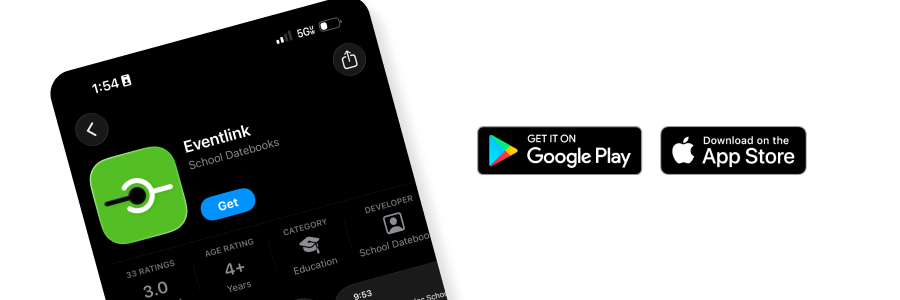
St. Anthony Schools Athletics uses Eventlink for athletic schedules and updates. Follow the steps below to download the app, create your account, follow your teams, and add events to your phone calendar.
Step 1:
Download the Eventlink app from the App Store or Google Play.
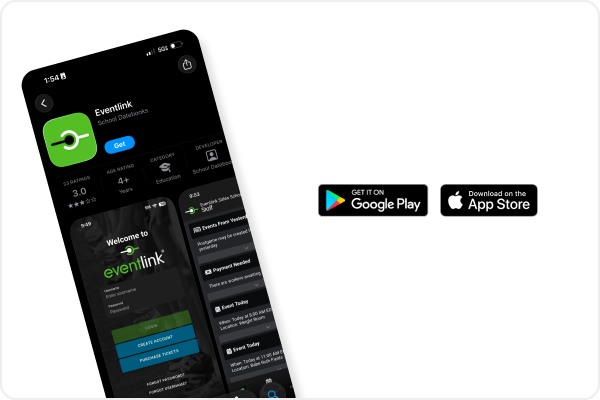
Step 2: Create an Account
Open the app and tap Create an Account.
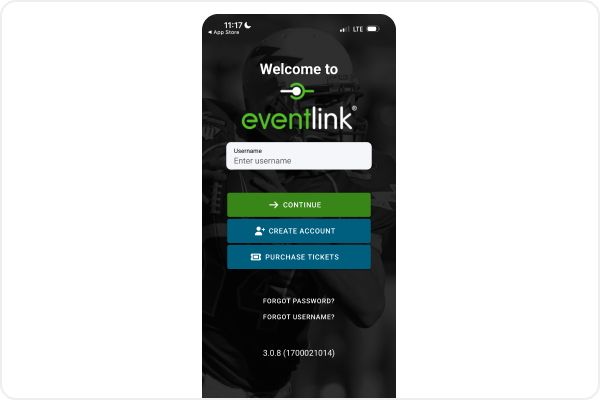
Step 3: Search for St. Anthony
Enter Anthony as the school name, choose Illinois as the state, then tap Search.
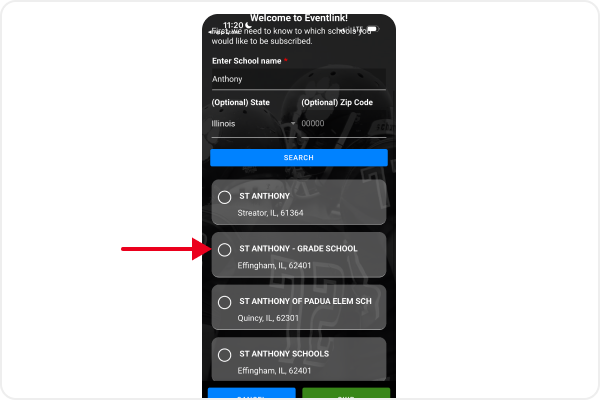
Step 4: Select the Correct School
Choose St. Anthony Schools – Effingham, then tap Next.
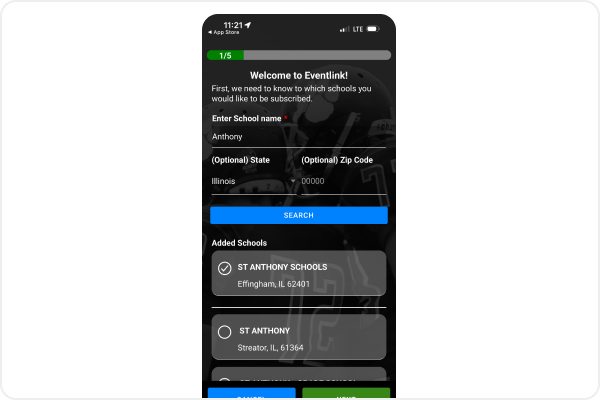
Step 5: Complete the Account Form
Fill out the registration form with your information, then tap Next.
Step 6: Enter Your Email Address
Enter the email address you check most often, then tap Next.
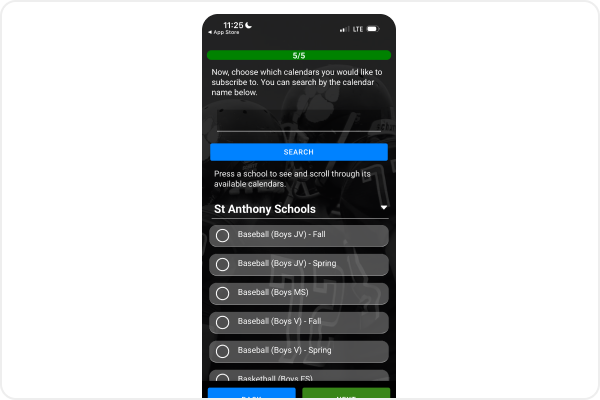
Step 7: Choose the Sports You Want to Follow
Select any middle school or high school sports you would like to follow. If you would like to follow all sports, choose St. Anthony Schools.
Step 8: Choose Your Notifications
Select the notifications you want to receive, then tap Create.
Step 9: Go to Community
Tap Community in the app.
Step 10: Activate Your Profile
Check your email for an activation code. The code is listed near the end of the email message.
Enter the activation code in the app to finish activating your account.
You are all set.
Using the Calendar in the App
The calendar icon is located at the bottom of the app.
Tap the calendar icon to view athletic events. At the top of the calendar, you can choose to view events by Week, Month, or a specific day.
Calendar Color Guide
Blue events are high school events.
Red events are middle school events.
Add Events to Your Personal Phone Calendar
- Tap the arrow next to My Calendars at the top of the calendar screen.
- Select the boxes next to the sports you want to add to your personal device.
- Tap the download cloud icon to the right of Select All.
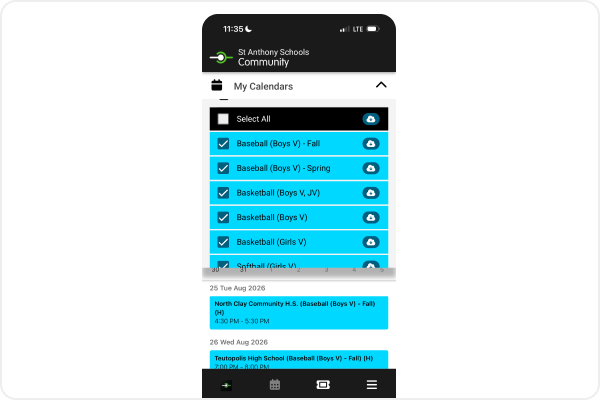
Any checked calendars will download to your personal phone calendar.